
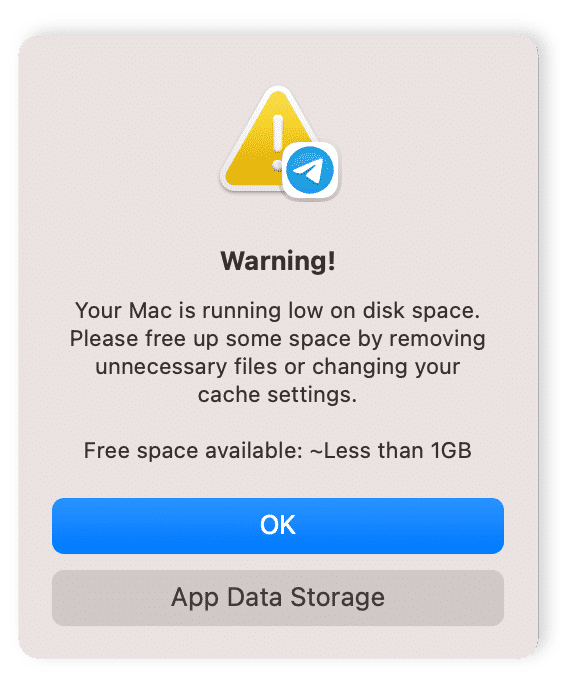
Running out of space on your Mac can significantly hinder performance and limit your ability to store important files. Whether you’re a professional dealing with large files or simply looking to optimize your Mac’s storage, this guide provides practical steps to free up space effectively.
1. Check Your Storage Usage Start by assessing what’s taking up the most space on your Mac:
- Open About This Mac: Click on the Apple icon in the menu bar, select ‘About This Mac,’ then click ‘Storage’ to see a breakdown of your storage usage, including apps, photos, documents, and system files.
2. Optimize Storage with Built-In Tools macOS offers built-in tools to help manage storage efficiently:
- Manage Storage: Click the ‘Manage’ button in the ‘Storage’ tab to access tools such as:
- Store in iCloud: Move files to iCloud and only keep recent and frequently accessed items on your Mac.
- Optimize Storage: Automatically remove watched iTunes movies and TV shows and keep only recent email attachments.
- Empty Trash Automatically: Automatically erase items in the Trash after they’ve been there for 30 days.
- Reduce Clutter: Review and delete large files, downloads, and unsupported apps.
3. Clean Up Your Hard Drive Manually If automatic tools aren’t enough, consider manual cleanup:
- Delete Large and Old Files: Use Finder to search for and remove old documents, downloads, and large files that you no longer need.
- Uninstall Unused Apps: Drag apps you don’t use from the Applications folder to the Trash, or use an app like AppCleaner to remove leftover associated files.
4. Remove Duplicate Files Duplicates can take up unnecessary space:
- Use a Duplicate Finder: Tools like Gemini 2 can scan your drive for duplicate photos, videos, music, and other files to safely remove them.
5. Clear Cache and Temporary Files System and app caches can grow over time:
- Clearing Cache: Open Finder, select ‘Go’ from the menu bar, hold down the Option key and click ‘Library’. Go to the ‘Caches’ folder and manually delete the contents of app cache folders.
6. External Storage and Cloud Options If you frequently need to manage large files:
- External Hard Drives: Consider moving large media libraries or extensive document collections to an external drive.
- Cloud Storage Solutions: Services like Dropbox, Google Drive, or iCloud can store large files and reduce the burden on your Mac’s internal storage.
Conclusion: Freeing up space on your Mac not only improves its performance but also enhances your overall computing experience. By regularly checking and managing your storage, you can maintain optimal functionality and keep your Mac running smoothly.
Further Reading and Resources:
Research Reference:
- Johnson, E., & Lee, A. (2021). “Efficiency in File Storage and Management on macOS.” Journal of Digital Storage Solutions.