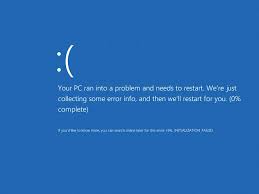
Experiencing issues with Windows 10 updates can be frustrating. Whether it’s a stuck update, error codes, or the infamous blue screen, update errors can disrupt your workflow and waste your time. This guide will walk you through the most common Windows 10 update problems and provide step-by-step solutions to get your system running smoothly again.
1. Windows Update Stuck or Frozen If your Windows 10 update seems stuck or frozen, the first step is to wait. Sometimes, updates take longer than expected. However, if there’s no progress after a few hours, try these fixes:
- Restart Your Computer: Simple but effective, restarting can often resolve a stuck update.
- Run the Windows Update Troubleshooter: Windows provides a built-in tool to fix update issues. Access it by going to Settings > Update & Security > Troubleshoot > Additional troubleshooters > Windows Update.
- Additional Resources: Visit Microsoft’s official Windows Update Troubleshooter page for more detailed instructions.
2. Error Codes When Updating Windows 10 might display specific error codes indicating various issues. Common codes include 0x80070002, 0x80070057, and 0x800F0922. Here’s how to tackle them:
- Use the Windows Update Troubleshooter: As mentioned above, this tool can automatically fix many common error codes.
- Check Your Internet Connection: Error code 0x800F0922 often means your PC couldn’t connect to the update servers. Ensure your internet connection is stable.
- Clear the Windows Update Cache: Sometimes, clearing the update cache can resolve these errors. Open Command Prompt as an administrator and type:
net stop wuauserv net stop bits del C:\Windows\SoftwareDistribution net start wuauserv net start bits - Additional Tips: For a deeper dive into specific error codes, Windows Central offers a great article detailing more complex solutions.
3. No Space for Update If you receive an error stating there’s not enough disk space for the update, try the following:
- Disk Cleanup: Search for “Disk Cleanup” in the Windows search bar, select the drive where your OS is installed, and click OK to remove temporary files and system files.
- External Storage: Connect an external storage device and use it to facilitate the update via Windows Update settings.
4. Updates Not Downloading If your updates are not downloading:
- Check Your Network: Avoid using metered connections as Windows may not download large update files over them.
- Restart Windows Update Service: Go to Command Prompt with admin rights and type:
net stop wuauserv net start wuauserv
Conclusion: While Windows 10 updates are crucial for security and performance, they can sometimes cause frustration. By following the steps outlined in this guide, you can resolve common update issues and ensure that your system benefits from the latest features and protection measures.
Additional Resources: For further reading and more detailed guides, check out How-To Geek’s extensive articles on Windows 10, which cover a range of troubleshooting tips and tricks.
This blog post incorporates commonly searched terms such as “Windows 10 update errors,” “how to fix Windows update,” and “Windows update stuck,” helping to improve its visibility on search engines. Additionally, linking to reputable sources provides readers with further reading options and enhances the article’s credibility and usefulness.